gMCP: A Self-Hosted MCP For Google Tag Manager & Your Google Data
If you could talk to your Google data and Tag Manager setup, what would it say? Would you use it to cross-reference data sources and find real omni-channel insights that you might miss? Would it help you fix a tracking issue that you’d been struggling with? Would it save you time on writing report insights?
These are the kinds of questions I built gMCP to answer. A unified MCP server for all Google marketing services rather than just one platform at a time.
What Exactly Is gMCP?
Built in Rust, gMCP is an MCP server that incorporates Google Tag Manager, Search Console, GA4, Google Ads, AdSense, PageSpeed Insights, Google Business Profile and BigQuery. It lets you have real conversations with multiple channels and data sources at once, through one MCP connection rather than a pile of separate ones.
If a conversation ever leads to an actual change like pausing a tag, nothing happens automatically. gMCP proposes the change and waits for you to explicitly confirm it before it touches anything.
The best bit? It’s completely self-hosted. None of your authorisation tokens will ever leave your own infrastructure. Available for Windows desktop or hosted on a Linux server with a fully functional chat platform, leveraging OpenRouter or other platforms with your API key. I’m really excited about it and to share it with you all. And it’s free.
Well, I did promise in my last post that I had something cool coming up and that it wouldn’t take me as long to publish this time!
We’ve got quite a long piece today because of the two installation options, so use the table of contents below to skip around based on which path you’re using. I promise the setup is faster and easier than you’d think.
Let’s get to it.
Why Build This?
Honestly, I had some free time and I’ve been getting a bit frustrated with having multiple MCPs connected to an LLM – I find it burns through more tokens and also increases hallucination chances. In the agentic world we’re moving towards in SEO and digital marketing, I felt there was a better way to do it, and it certainly beats manually switching through dozens of tabs trying to diagnose problems or find insights.
The security nerd in me also gets a bit worried about how free everyone is getting with connecting their data sources to LLMs. People willingly connect a lot of sensitive data to them and don’t really think about the ramifications of doing so, which I genuinely believe is going to cause some very large, high-profile problems in the not-too-distant future.
gMCP being self-hosted means that your authorisation tokens and your data never leave the infrastructure you control, be that your local machine or the self-hosted version, although they are still sent to your LLM. However, it’s worth mentioning early that you are responsible for maintaining that security. I’ve built the platform to be as secure as I could, but you have to do your part by keeping the hosted version up to date.
I’ll talk about security more after we’ve got it set up. DON’T SKIP THAT SECTION!
What Can You Do With This?
Having all your Google data connected in one place gives you a range of conversational abilities with it, rather than looking at individual sections in isolation.
Instead of asking the question from multiple tools, you can go straight in with seeing which of your top Google Search Console queries likely drove the most organic sessions according to GA4’s landing page report. You can see what your referral traffic performs like. You can see if there’s a click to session mismatch from Google Ads. You can ask if GA4 misreporting is related to a specific tag or Consent Mode setup. You can investigate your BigQuery data without writing lots of SQL in the platform. The possibilities are endless.
A Few Example Questions
As with all things AI, the most important part is the question. Here’s a few I’d get started with:
Cross-source/ omni-channel:
- “Which landing pages get the most organic impressions but the lowest GA4 conversion rate?”
- “Compare my top 10 Search Console queries against GA4 landing page sessions. Where’s the biggest mismatch?”
- “Is my referral traffic from [specific site] converting better than my organic search traffic?”
Diagnostic/ troubleshooting:
- “Are there any GTM tags firing on triggers that don’t exist or that look misconfigured?”
- “Why might GA4 be under-reporting sessions compared to Google Ads click data this month?”
- “Check if Consent Mode is affecting how many GA4 events are being collected on my checkout pages”
Efficiency/ reporting:
- “Summarise my Search Console performance for the last 28 days like you’re writing it for a client report”
- “Query BigQuery for last week’s top 5 converting channels”
- “Which GTM tags are still using Universal Analytics that I should probably clean up?”
OK, now let’s talk about the two types of installations.
The Two Installation Flows
I deliberately built gMCP into two install options. I use Claude Desktop for work and personal stuff, but I also know that a lot of people don’t work that way and I wanted gMCP to be accessible to everyone. I also only had access to Windows machines for the build and I know that’s potentially limiting.
As such, we’ve got a Windows desktop version that works with Claude Desktop or other stdio-based platforms and a fully-functional self-hosted version that uses LibreChat as its front end, hosted on any Linux box with Docker.
What You’ll Need For Local Installations
- A Windows machine with Claude Desktop installed (any MCP-compatible client should work in principle through stdio)
- Access to your relevant Google APIs and an OAuth client (more on that later)
I’ve not hit admin privilege issues on any of my machines for this, but some corporate setups may block unsigned .exe files regardless of permissions. If you run into that, it’s worth a conversation with your IT department.
What You Need For Server Installations
There are a few things you’ll need to install it on a server, but none of them are complicated:
- A Linux server with Docker and Docker Compose installed. A small 2GB droplet is enough
- SSH access to that server
- An SSH key
- A subdomain with its DNS A record already pointing at the server’s IP (needed for HTTPS)
- An OpenRouter API key (more on locking this down properly in the security section)
- Access to your relevant Google APIs and an OAuth client (more on that later)
- On your own machine: just bash, ssh and curl – Git Bash or WSL if you’re on Windows
There’s nothing to install locally beyond those three tools, the server does the actual work.
I’m not going to talk through how to set up SSH keys or what the required bash commands actually do today. If you’d like to read more about that, refer to my Complete Guide To Git For Data Analysts.
OK, let’s get set up.
Enabling Your Google APIs In Cloud Console
This is the first step before we install anything. If you’re already using your Google data in AI platforms or other tools like Supermetrics or Funnel, you’ve probably already got this all set up already, but if you don’t, we’ve got a few buttons to click.
APIs You Can Connect
You don’t need to connect all these APIs if you don’t need them, you can pick and choose. But if you’re using GA4, you do need to connect both the Admin and Data APIs – they don’t work independently
- Google Tag Manager API: Read (and, with confirmation, write) access to GTM containers: tags, triggers, variables and workspaces
- Google Analytics Admin API: Lists your GA4 accounts, properties, and available dimensions/ metrics
- Google Analytics Data API: Runs the actual reports; sessions, users, engagement, conversions and custom metrics
- Search Console API: Query performance data (clicks, impressions, CTR, position) by query, page, country, or device, plus your list of verified properties.
- Google Ads API: Read-only access to campaigns, spend, and performance via GAQL
- AdSense Management API: Earnings, impressions and click data by ad unit or page
- BigQuery API: Run SQL directly against exported GA4/ Search Console data
- Google Business Profile API: List business locations and accounts
- PageSpeed Insights API: Lighthouse-style performance scores for any URL
As you can see, there’s plenty of potential functionality here, but you don’t need to enable APIs for services you don’t use.
Let’s look at how to set them up. I’ll talk you through the GA4 APIs, then we can move on to the OAuth setup.
Setting Up Your Google Cloud Project
Before you can enable any APIs, you need a Google Cloud project set up first. Everything else in this section and the OAuth client you’ll set up later, lives inside whichever project you create here.
Log into Google Cloud Console with the account you want to use. If it’s a brand-new account, Google will likely prompt you to create a project automatically. Otherwise, you’ll see a project selector dropdown at the top of the page.
Click it, then New Project. Give it a name. This is just a label for you, it doesn’t need to match “gMCP” or anything specific, but naming it something you’ll recognise later (like “gMCP” or “Analytics Tools”) saves confusion if you come back to this in six months.
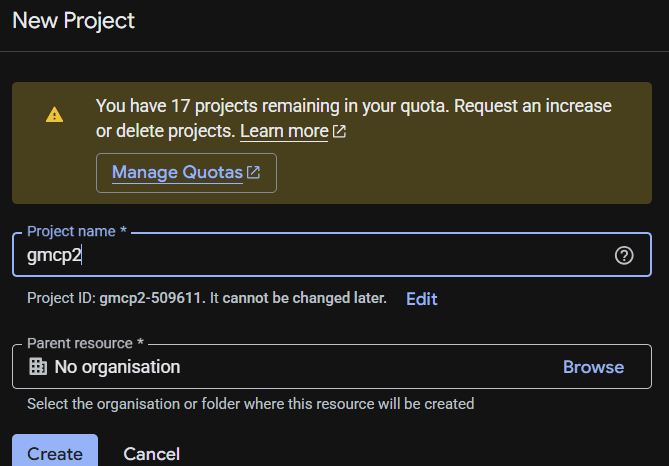
Once it’s created, double-check it’s selected in that dropdown before moving on. It’s easy to create the project, then carry on clicking around while still sitting in a different one, which means the APIs you enable next won’t be where you expect them.

If you’re in an agency or Workspace setup with existing projects already in place, check with whoever manages your Google Cloud org before creating a new one. You may not have permission to, or there may already be a project you’re expected to use instead.
Enabling GA4 APIs In Google Cloud Console
This will enable the two GA4 APIs we need. After that, any other APIs you want to use, you can just follow the same process.
As much as I love Google Cloud, the user experience does leave something to be desired, so I’ll walk you through it.
Firstly, log into your Google Cloud Console at https://console.cloud.google.com. It’s important that you log in with the account you want to use, so if you’re in an agency environment with a centralised Google account, log in via that rather than a personal account that doesn’t have access to the data you want.
In this case, you’d probably have most if not all of the APIs you need already enabled. If not, or you’re setting this up for yourself, read on.
The APIs & Services Section
Navigate to the APIs & Services part of the console:
Click the hamburger menu in the top-left corner, then click APIs and services in the list that slides out.
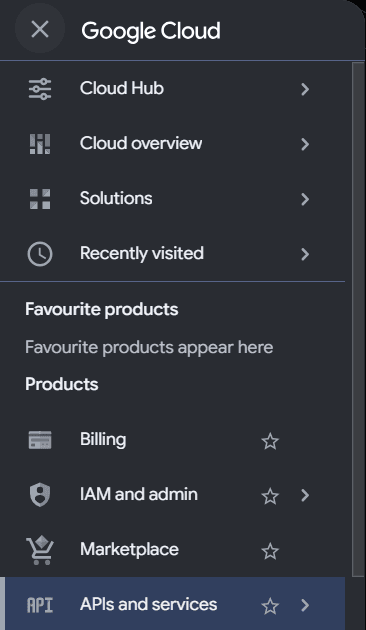
From the left-hand menu, click Library. This opens a search box, not a list. Google has hundreds of APIs and you only want two of them right now. Click into the search box and type “Google Analytics Admin API”.

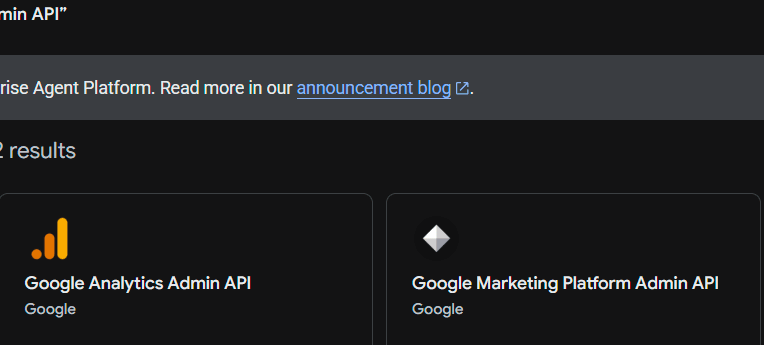
Press enter and you’ll get two results. You want Google Analytics Admin API, not “Google Marketing Platform Admin API”, which is a different product. It’s an easy one to click by mistake, so double-check before you go further.
Give it a few seconds. Once it’s done, the page changes to show the API’s status, and where the button said “Enable” it’ll now say “Disable API”, with “Status: Enabled” underneath.
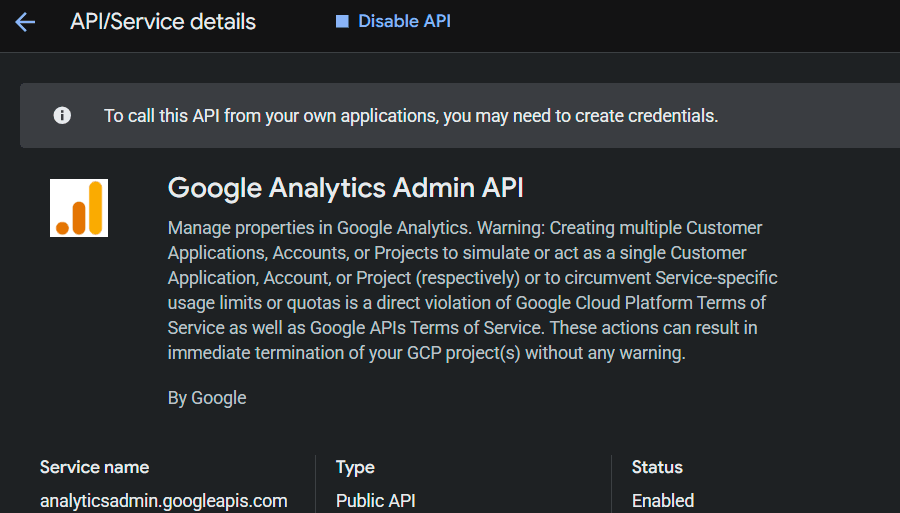
Now repeat the exact same steps for the second one: back to Library, search “Google Analytics Data API” this time, click into it, click Enable. Same confirmation screen when it’s done.
If you want to check both went through, click Enabled APIs and services in the left-hand menu and scroll down the list. You should see both sitting there.

As mentioned earlier, this is the one place people usually trip up with GA4: it needs both the Admin API and the Data API enabled, not just one.
Every other API on your list only needs this same two-click process and unlike GA4, none of them need a second API enabling alongside it.
Setting Up Your Google Consent Screen
This part is annoying, and unfortunately, I can’t solve that. It’s Google Cloud’s UX and their genuinely infuriating requirements. However, if you give yourself 20 minutes or so, you’ll never need to do it again and you can get onto using gMCP on either your own machine or a server.
Short-term pain, long-term gain.
Let’s get the hard part out the way, then we can have some fun.
Creating Your Policies
Even though this is self-hosted, Google still wants to have a consent screen to ensure that it’s all on the up-and-up, as though you were going to make it public.
In order to ensure that you don’t have to run PowerShell/ bash commands every seven days to keep your API connections enabled, we’re going to have to publish the app, which means you’ll have to go through some steps, including a privacy policy and terms of service pages.
I’ve written boilerplate privacy policy and terms of service pages that you can use:
We’ll use them for this example. You can copy them and put them on your own domain or another site you control. It doesn’t need to be easily findable or in your site’s navigation. Just change the contact form link to your own – I get enough spam in my emails!
Again, I take no responsibility for your data. It’s on you to keep it secure. This is just a boilerplate to save you the hassle of refreshing your tokens every week.
If you’re on a company Google Workspace account, you won’t need to jump through all these hoops, you can just set it to “Internal”.
The Published Consent Screen
Now we’ve got our policies, we need to add some info to it. Don’t worry, none of this is complicated, and nobody else will ever see or use it. You just have to jump through some Google hoops to save you refreshing tokens every week.
Head to Google Cloud Console, open your project, and search for “Google Auth Platform” in the top search bar. There is a set of tabs: Overview, Branding, Audience, Clients, Data access, Verification Center, Settings. Don’t worry about most of them, we only need three.
Create Your Branding Profile
Click “Branding” in the left menu, then “Get started.”
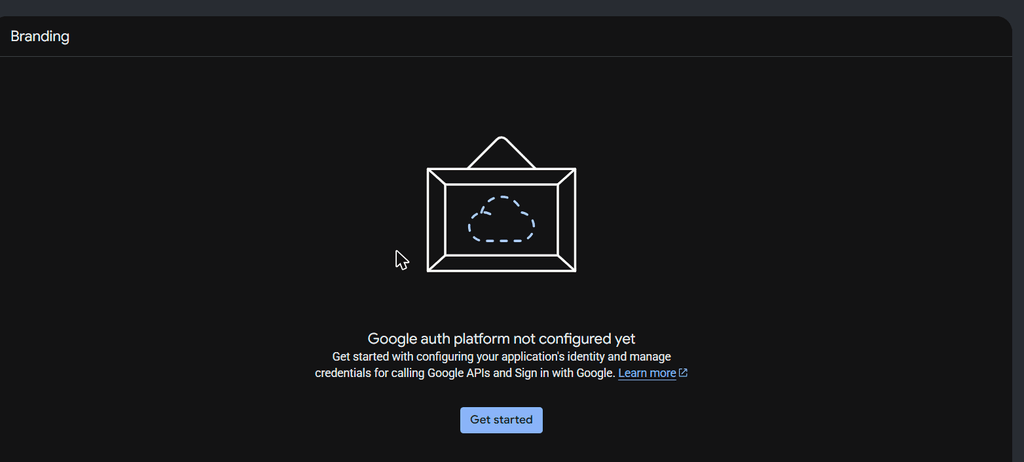
Step 1: App Information. Give it a name (I used “gMCP”) and a support email. This is just your own email, it’s where Google will send you notifications, and it’s the address shown if anyone ever asks who’s asking for their data. Click Next.

Step 2: Audience. Pick “External.” Internal only applies if you’re on a paid Google Workspace account. If you were, you’d already know. Click Next.

Step 3: Contact Information. Same email again. Click Next.
Step 4: Finish. Tick the box agreeing to Google’s API services user data policy, then hit Create.

Fill In Your Branding Details
That’s your branding profile created. You’ll land back on the Branding page, now with a proper form to fill in.

Add your homepage, your privacy policy and terms of service links, then scroll down to “Authorized domains” and add every domain those three links point to. Google checks this and won’t let you save until it’s happy. You’ll get a “missing domain” error under any URL it doesn’t recognise.
There’s an upload box for a logo, but I’d skip it. Google says that uploading a logo means submitting for verification, unless your app is set to internal or still in testing. We’re about to publish this to production, so leave it blank. Your consent screen will show a generic icon instead of your brand logo, which is a fair trade for not spending the next few weeks in Google’s verification queue.
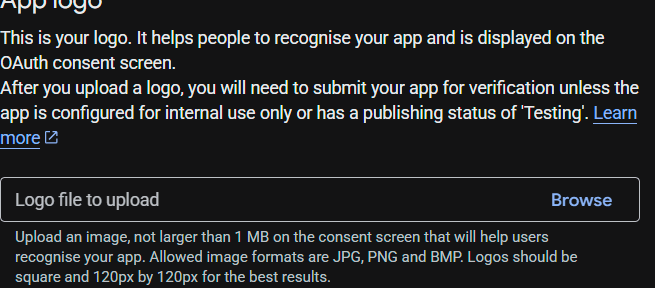
Hit Save. You should see a “Branding changes saved” confirmation.
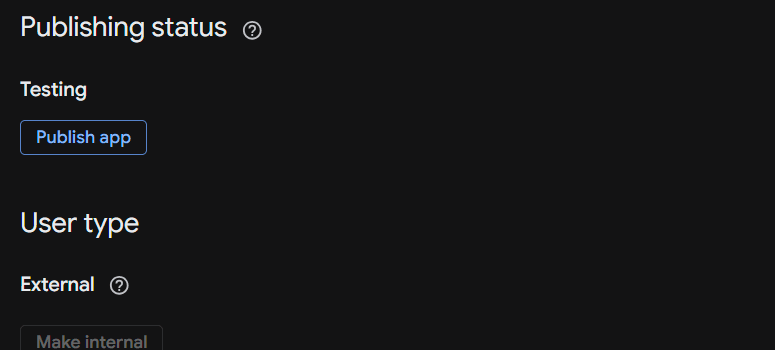
Publish To Production
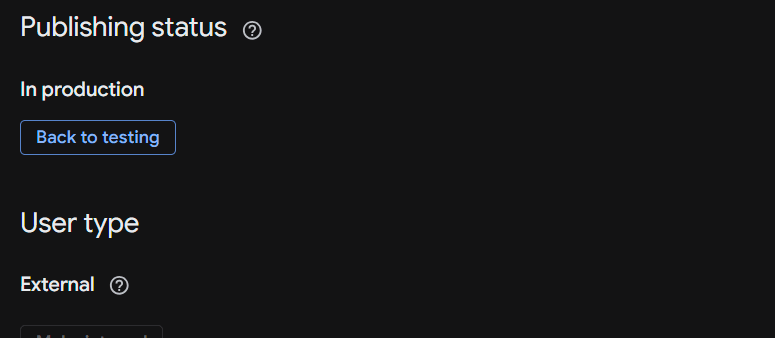
Now click “Audience” in the left menu. Under Publishing status, you’ll see “Testing” and a “Publish app” button. Click it.
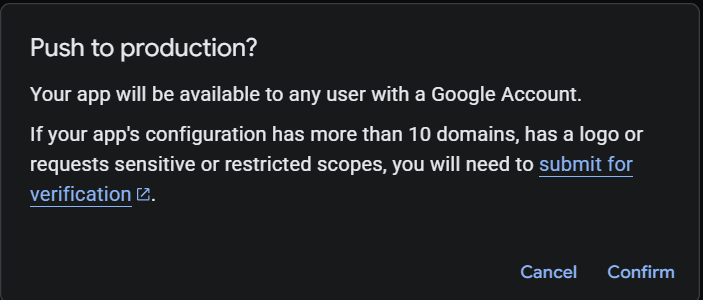
You’ll get a confirmation popup: “Push to production? Your app will be available to any user with a Google Account. If your app’s configuration has more than 10 domains, has a logo or requests sensitive or restricted scopes, you will need to submit for verification.” We’ve got our domains, no logo and no scopes configured yet, so click Confirm.
Publishing status should now read “In production.” This is the bit that should get you out of the seven-day token refresh problem.
One thing worth flagging while we’re here: if you go back to the Branding page after publishing, you might see a warning in the sidebar saying “Your branding needs to be verified before it can be shown to users,” with a “Verify branding” button. Don’t click it!
As long as you stick to no logo and no sensitive scopes, you can carry on ignoring it. It only becomes a real blocker the moment you add something that triggers it.

We’re nearly there, I promise!
Create Your OAuth Client
Our last step is creating the actual credentials gMCP will use. Click “Clients” in the left menu, then “Create client.”

For Application type, choose “Web application.” It’s the one type that works for both ways of running gMCP on your own computer and on your own server. Give it a name.

Then, under “Authorized redirect URIs”, click “Add URI” and enter http://127.0.0.1:8765
That’s the address gMCP listens to while you sign in to Google. If you set up the server version later, come back and add https://<your-subdomain>/oauth/callback here too, since one client can hold both. Click Create.
Google will show you a Client ID and Client secret. Copy both somewhere safe straight away, because it won’t show you the secret again once you close that dialog. These two values are what you’ll paste into gMCP’s config, and they’re the last thing you need from Google Cloud Console before you can run it.
OK, now that’s finally out the way, let’s have some fun and install the desktop version. I’m going to use Claude for this, since it’s what I use, but it should theoretically work with other MCP-capable apps too.
Installing gMCP For Windows & Claude Desktop
Now we’ve gotten through Google’s annoying permissions setups, the next part is very easy.
Head to the gMCP GitHub link specifically the Releases page, not the repo’s code. The installer only ships as a release asset, so cloning or downloading the repo itself won’t give you the file you need.
Download gMCP
Go to the releases page.

Click on the latest release and download gmcp.mcpb.
Install gMCP In Claude Desktop
Before you do anything else, quit Claude Desktop completely, including from the system tray. If an earlier install is still running in the background, it holds the binary open and the install fails with a permissions error.

Reopen Claude Desktop, go to Settings, then Extensions.

Drag gmcp.mcpb onto the install screen. Don’t double-click it: .mcpb files have no file association on Windows, so nothing will happen.

Click install and now all that Google Cloud setup work we did will make sense.
Enter Your OAuth Credentials
You’ll be prompted for the Google OAuth Client ID and Secret you created earlier. Paste both in here.

Almost there.
Connect Your Google Services
Installing the extension doesn’t connect anything on its own. Until you run the setup wizard, gMCP has no tools and Claude Desktop will just show it as “Failed.”
Open a new Claude Desktop chat and say “Open gMCP connect screen”. It’ll give you the following screen. Click the services you want to enable, one by one.

For GA4, Search Console and a couple of the others, Google will show you a “Google hasn’t verified this app” screen before letting you continue. That’s expected, not a sign something’s wrong. You’re the only person who’ll ever sign in to it. Click “Advanced”, then “Go to gMCP (unsafe)” to proceed.
Once you’ve been through all the services you want, restart Claude Desktop.
Confirm It’s Working
Open Claude Desktop and check the gMCP extension no longer shows “Failed.” You should see it listing tools for whichever services you just connected.

Now go ahead and chat to your data!

Embarrassing stats aside, that’s pretty cool, right?
Installing gMCP On A Linux Server
If you’re not on Windows, you can install gMCP on a cheap Linux server using Docker. I will eventually get around to building a Mac and Linux desktop version, but this is where we’re at for now.
The server installation comes bundled with LibreChat for a front end, so you can still chat in the same fashion. You’ll just need the API key from your platform of choice. For this example, I’m using OpenRouter, since it gives availability for nearly every LLM and it’s nice and cheap, but you can use any API that LibreChat supports.
Creating A DigitalOcean Droplet
Again, this is personal preference. I’m a big fan of DigitalOcean and have been using it for over a decade. I’m also an affiliate, for disclosure, however gMCP will work on any Linux hosting platform that can use Docker.
Before you do this, make sure you’ve got an SSH key set up and added to your DigitalOcean account. As mentioned earlier, I’m not going to cover that here. My Complete Guide to Git for Data Analysts will cover you for setting up your SSH key and you can refer to the DigitalOcean docs to add your SSH key to your droplet.
Once you’ve done that, go to your DigitalOcean account (feel free to sign up via my link if you’re so inclined) and create your Droplet using the one-click Docker install. gMCP and LibreChat aren’t super heavy, so you should be OK with a 2GB Droplet until you want to scale.
Choosing Your Droplet Settings
Choose the datacentre location nearest to you and select a Docker image. Choose the type of machine you want depending on how heavily you’re planning on using the platform – you can always increase it later.


Now add your SSH key(s). I have a few due to different machines and configurations.

Give it a useful name, like “gMCP” and enable backups if you’d like.
Once that’s all set up and you’ve chosen the options you want, click “Create Droplet”.

It’ll take a few minutes for your Droplet to create and install. Grab yourself a coffee while you wait.
You can upload gMCP to the Droplet via root, but for security reasons, you really shouldn’t. You should use a sudo user. Refer to this DigitalOcean guide to do that.
Adding Your Sudo User To Docker
Your new sudo user doesn’t have access to Docker by default, only root does, so you’ll need to run another command to do that before you can go any further.
sudo usermod -aG docker youruser
Obviously replace “youruser” with your sudo username and log out and back in.
Now you’ve got your Droplet (or other Linux host) created with your sudo user and SSH key set up, we can get to installing gMCP. Again, this part’s easy.
Pointing A Subdomain At Your Droplet
gMCP needs its own subdomain so it can set up HTTPS for you automatically. Set one up, and head to where your domain’s DNS is managed.
Copy your Droplet’s IP address from the DigitalOcean dashboard, then add an A record for your subdomain pointing at that IP.

Do this before you run the installer. It needs the record to be live to get your HTTPS certificate and DNS changes can take a while to propagate.
Installing gMCP Through Docker
Again, once the setup is done, this is the easy part. As well as having your Google OAuth consent screen fully set up as we did earlier, you’ll just need your LLM’s API key of choice. I’ve used OpenRouter for this example, but the supported ones we discussed earlier will work too.
Ensuring OpenRouter Doesn’t Share Your Data With LLMs
We’ve got a couple of buttons to push on the OpenRouter side first. Head to https://openrouter.ai/settings/privacy and switch on the account-wide training opt-out. The installer asks for Zero Data Retention on every request automatically, but that one toggle has to be clicked by hand.
While you’re there, create an API key if you haven’t already and keep it to hand. You won’t be able to get it again, so save it somewhere safe.

That’s your data retention set. Onward.
Adding Your Redirect URI
Back in Google Cloud Console, open the Web application client we created earlier. Under “Authorized redirect URIs”, click “Add URI” and enter the following, swapping in your own subdomain: https://chat.example.com/oauth/callback
Google matches this exactly, so double check it. If you added the 127.0.0.1 address for the Windows version, leave it where it is, since one client can hold both. Click Save.
Running The Installer
The installer runs from your own computer, not from the Droplet. It connects over SSH and does all the work on the server for you, so there’s nothing to copy across yourself. If you’re on Windows, use Git Bash. On Mac or Linux, the normal Terminal is fine. Open your terminal, go to any folder (your home folder is fine) and run:
git clone https://github.com/BenJohnston429/gmcp.git
cd gmcp/server
Before you go any further, check you can reach your server. Run ssh youruser@your-droplet-ip and you should be logged straight in (type “exit” to come back). If it asks whether to trust the server’s fingerprint, type “yes”. That only happens the first time.
The Installer Flow
Now run the installer:
bash install.sh
It will ask you for the following:
- SSH target for the server: Your sudo username and your Droplets IP, for example youruser@123.4.567.80
- Public subdomain: Just the name, for example “chat.example.com”, with no “https://”
- Email for Let’s Encrypt: Any address you read
- OpenRouter API key: The one you just created
- Google OAuth Client ID, then Secret: From your Web application client
- Your email, display name, username and password: The login you want for the chat interface. The password stays hidden as you type
Then it does the rest by itself. It’ll take a few minutes the first time.
The installer creates a “gmcp-server” folder on the Droplet, writes the server’s configuration (generating its own secrets), downloads and starts everything and creates your chat login. At the end it prints your Connect page URL and gMCP’s bearer token. Copy that somewhere safe.

Nothing is installed on your own computer, it’s all on the server.
Now let’s connect your Google services.
Connecting Your Google Services On The Server gMCP
Just like the Windows version, installing doesn’t connect any of your Google services on its own. When the installer finishes in your terminal, you’ll receive a link to a “Connect” page. Copy and paste that URL into your browser and click the services you want to connect.

Now enable your services on the Connect page after pasting your bearer token.
You’ll see the following after each connection is successful:

Once you’ve connected everything, you’re on your way.
Checking It’s Live
Give Caddy a few minutes to get your HTTPS certificate and install everything, then visit your subdomain in a browser. If you see the LibreChat login page with a padlock, we’re good to go.
Sign in with the email address and password you gave the installer. Use your email rather than your username since LibreChat is fussy about that.

Log in, and let’s get the last step out of the way.
Switching On The Tools In LibreChat
After you log into LibreChat, use the tools control in the message box to enable gMCP’s tools for your conversation. Until you do, the model has no access to them and will tell you it can’t reach your data.

Select your model in the top menu and ask it a question about what tools it has to check it’s all worked.

Now ask it something, like which tags are paused in your Tag Manager container and watch it query your Google data.

And there we have it – gMCP is installed on your Linux server with a LibreChat front end. I told you it was easy. Now you can get to interrogating your data.
Keeping Your gMCP Server Secure
This server holds your Google refresh tokens, which means it can read all your Google data and, if you’ve granted it, make changes. Treat it like you would any other server with access to something valuable. None of this is difficult, but it does need doing and a couple of the jobs need repeating regularly.
What’s Already Locked Down
Here’s what the installer sets up for you:
- Everything is served over HTTPS with certificates handled automatically by Caddy
- The only ports the stack opens to the internet are 80 and 443. gMCP, LibreChat and the databases are only reachable inside Docker’s own network
- gMCP’s endpoints are protected by a bearer token the installer generates and public signup on LibreChat is switched off, so nobody can register themselves an account on your server
- Services connect as read-only unless you say otherwise and anything that changes your data needs a confirmation step that the server checks
- Your Google sign-ins are stored on your server
That covers gMCP. Everything else is about the server hosting it, which is down to you. I’ve written a separate post on security practices for gMCP. Make sure you read it and follow it. It’s important.
Troubleshooting
If something isn’t working, I’ve written an in-depth troubleshooting section in the readme.
As always, you can also hit me up on LinkedIn if you need help.
Wrapping Up
And there we have it – a fully self-hosted MCP server for all your Google data. I hope you’ll find this useful and that it helps you with your work.
Let me know how you get on and if gMCP saves you time and hassle. I’ve got a few potential other feature enhancements in mind, but right now I’m focusing on my next time-saving initiative. Sign up for my email below: you won’t want to miss it.
Until next time.


